
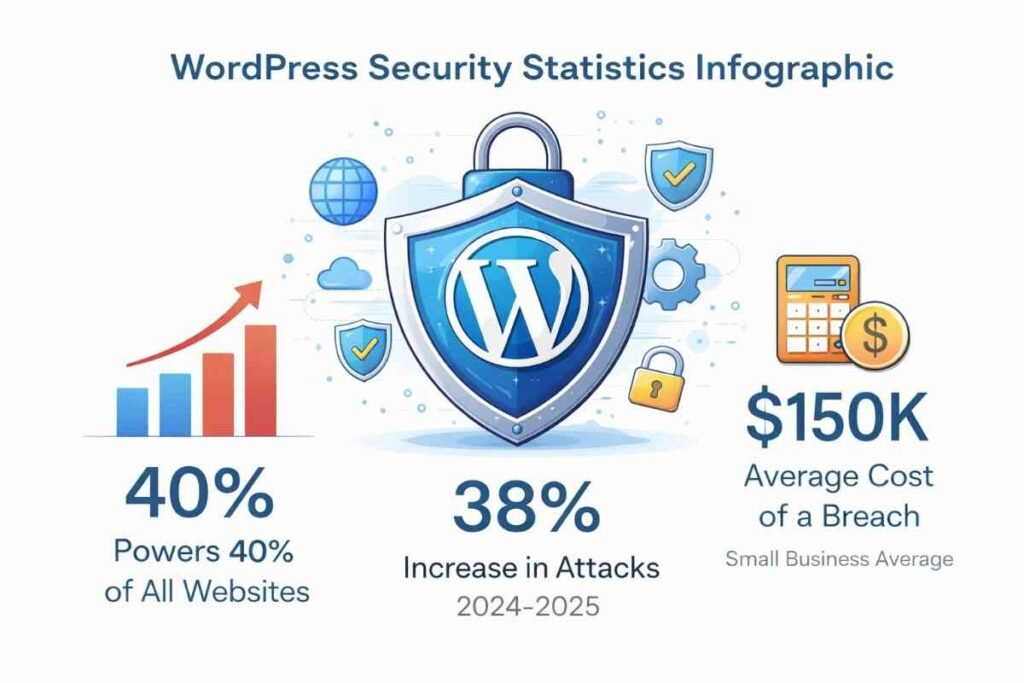
Running a small business website on WordPress comes with incredible opportunities, but it also places you squarely in the crosshairs of cyber threats. With WordPress commanding a dominant share of the web’s content management systems, malicious actors continuously develop new methods to exploit vulnerabilities and compromise sites.
For small business owners, the consequences of a security breach extend far beyond technical inconveniences. You risk losing customer trust, facing regulatory penalties, experiencing revenue loss, and spending countless hours recovering from attacks. This comprehensive guide provides a practical roadmap for protecting your WordPress investment without requiring advanced technical expertise or substantial financial resources.
Table of Contents
Understanding the Current Threat Landscape
The digital security environment has evolved dramatically. Recent data indicates that small businesses face increasingly sophisticated attacks, with automated bots constantly probing WordPress installations for weaknesses. Unlike enterprise organizations with dedicated cybersecurity departments, smaller companies must work smarter to defend their digital properties.
💡 EXPERT INSIGHT
Small businesses often believe they’re too small to be targeted, but that’s a dangerous misconception. Automated attacks don’t discriminate by company size—they target vulnerabilities. A small online boutique with weak security is just as attractive to hackers as a larger operation, sometimes more so because attackers expect less resistance and fewer security measures in place.
When your site falls victim to an attack, the ramifications multiply quickly. Search engines may blacklist your domain, visitors encounter warning messages, customer data becomes exposed, and your business operations grind to a halt. Industry analysts estimate that recovering from a significant breach costs small businesses well into six figures when accounting for lost business, remediation expenses, and reputational damage.
The encouraging reality? Most successful attacks exploit preventable vulnerabilities. By establishing robust security foundations and maintaining consistent protective measures, you can dramatically reduce your risk profile.
Building Your Security Foundation
Maintain Current Software Versions
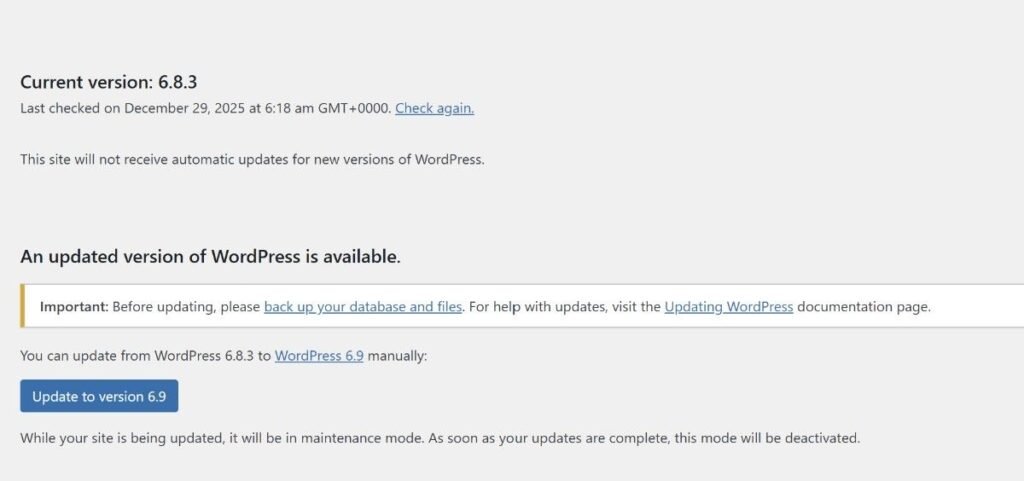
Outdated software represents the most prevalent security weakness across WordPress sites. Developers continuously identify and repair security flaws, releasing patches through regular updates. Operating on obsolete versions essentially broadcasts vulnerabilities to potential attackers.
Establish a systematic approach to updates. Configure automatic installation for minor core releases while scheduling dedicated time each month to handle major version upgrades, theme updates, and plugin patches. This balanced approach maintains security while giving you oversight of significant changes. Never update without first creating a complete site backup—your safety net if something goes wrong.
💡 EXPERT INSIGHT
Security professionals have witnessed businesses lose everything because they delayed updates for “just a few more weeks.” Here’s a critical rule: If a security update is released, you have 72 hours maximum to install it. After that window, you’re essentially gambling with your business. Schedule a recurring calendar reminder and treat it like paying your rent—non-negotiable and time-sensitive.
Many breaches succeed because site owners ignore available security patches for weeks or months. Don’t become another statistic by neglecting this fundamental practice.
Strengthen Access Control
Authentication weaknesses continue enabling unauthorized access across countless WordPress installations. Basic password protection no longer provides adequate defense in today’s threat environment. Your authentication strategy needs multiple reinforcement layers.
Begin by establishing mandatory password complexity standards for every account. Passwords should extend beyond 12 characters, incorporating uppercase and lowercase letters, numerals, and symbols in unpredictable combinations. Eliminate common words, personal details, or sequential patterns that automated tools can crack within minutes.
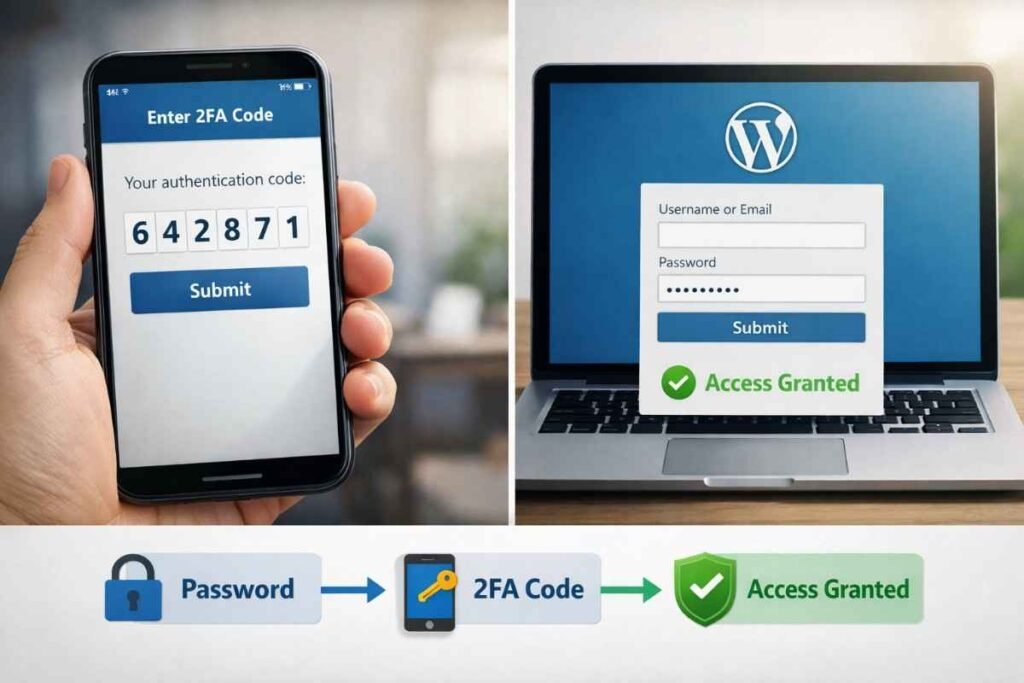
Two-factor authentication transforms your security posture overnight. By requiring a time-sensitive code from a mobile device alongside traditional credentials, you prevent unauthorized access even when passwords become compromised. Several reliable plugins streamline 2FA implementation without technical complexity.
💡 EXPERT INSIGHT
Two-factor authentication is non-negotiable in 2026. Google Authenticator or Authy are recommended for 2FA needs. Here’s a crucial tip often overlooked: Set up 2FA for your email account too, not just WordPress. If attackers access your email, they can reset your WordPress password and bypass everything else you’ve configured. Your email is the master key to your digital kingdom.
Modifying your default login URL adds another defensive layer. Rather than using the standard WordPress login addresses that automated attacks target relentlessly, create a custom URL that only legitimate users know. Various security plugins facilitate this change through simple configuration settings.
Apply the Principle of Least Privilege
Many WordPress sites grant excessive permissions unnecessarily, creating security risks when accounts become compromised. Every user should receive only the access level their responsibilities require—nothing more.
WordPress includes built-in role classifications spanning from Administrator down to Subscriber. Conduct quarterly audits of all user accounts, verifying that role assignments remain appropriate. Immediately remove accounts for departed employees, completed contractor projects, or inactive users. Temporary access needs should utilize temporary accounts that you delete promptly after use.
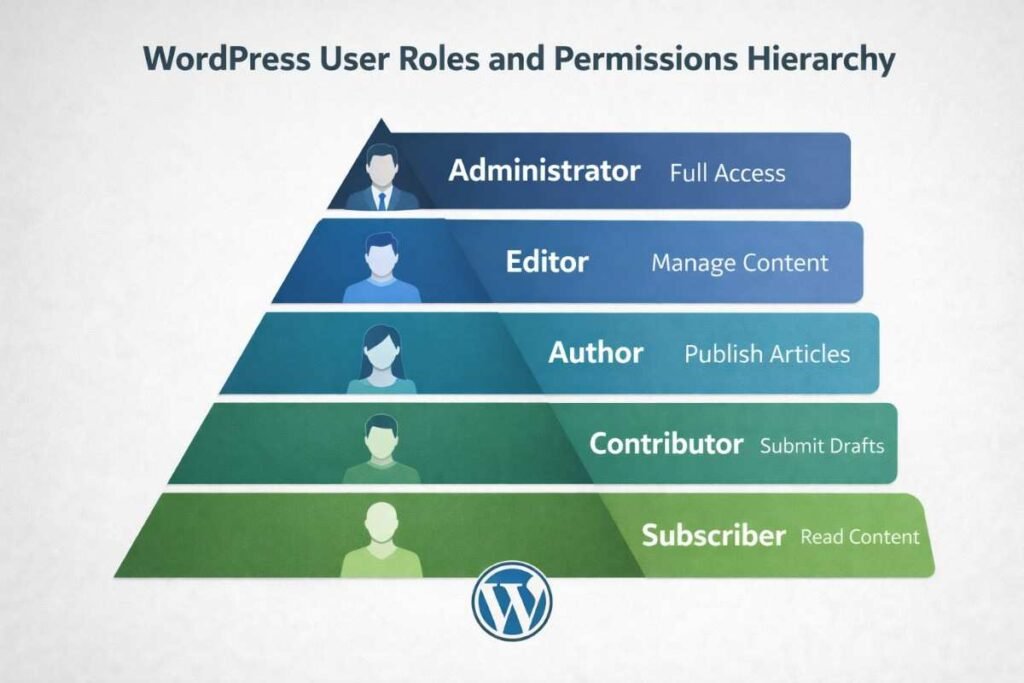
Businesses with diverse teams benefit from custom role configurations. Specialized plugins enable granular permission control, ensuring content creators cannot accidentally modify critical system configurations or install plugins.
Fortifying Your WordPress Environment
Select Security-Focused Hosting
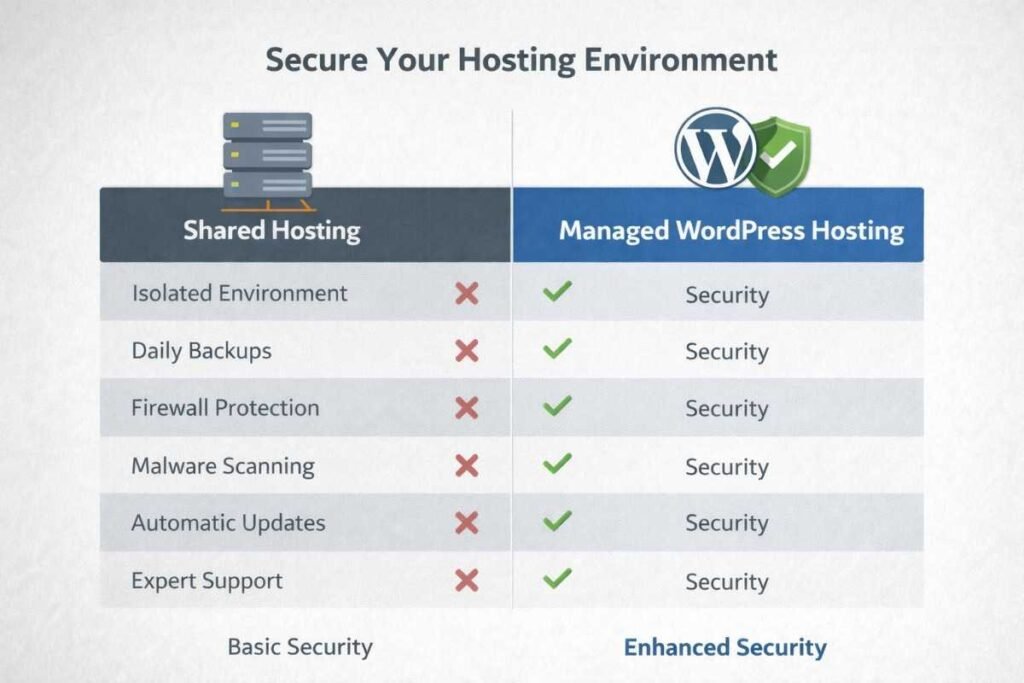
Your hosting infrastructure establishes the security baseline for everything built upon it. Economical shared hosting rarely includes the protective measures serious businesses require.
Partner with hosting providers specializing in WordPress security. Look for offerings that include server-level firewalls, continuous malware monitoring, distributed denial-of-service protection, and automated backup systems. Managed WordPress hosts typically provide superior security monitoring with proactive threat responses.
💡 EXPERT INSIGHT
Think of hosting like renting office space. Budget options mean sharing resources with potentially hundreds of other sites. One compromised neighbor can affect your security through shared server vulnerabilities. Managed WordPress hosting costs more upfront, but you’re essentially hiring round-the-clock security monitoring. For businesses handling customer data or transactions, this isn’t optional—it’s a fundamental business expense like insurance.
Verify that your hosting account supports SFTP rather than outdated FTP protocols, encrypting all file transfer activities. Install SSL/TLS certificates through your provider or free certificate authorities. The security indicator in browser address bars has evolved from an e-commerce necessity to a universal requirement that also influences search rankings.
Optimize File Permission Settings
WordPress installations contain sensitive files requiring precise permission configurations. Incorrectly set permissions either lock administrators out or welcome intruders in.
Standard best practices call for directory permissions at 755 and file permissions at 644. Your wp-config.php file, housing database credentials, deserves extra protection at 440 or 400. Most hosting control panels include permission management interfaces, though SFTP clients provide direct control when needed.
Consider relocating wp-config.php one level above your public WordPress directory when your hosting structure permits. This prevents direct browser access to your most sensitive configuration file. Additionally, disable the built-in file editor by inserting define('DISALLOW_FILE_EDIT', true); into your configuration file, preventing code modifications through the dashboard.
Deploy Comprehensive Security Software
Think of security plugins as your site’s active defense system, continuously monitoring threats and blocking malicious activities. The 2026 security plugin landscape offers several robust options, each with distinct advantages.
Wordfence delivers extensive protection through its firewall capabilities, malware detection, and login security features. Its threat intelligence network shares attack patterns across millions of sites, enabling proactive blocking. The free tier provides substantial coverage, with premium features adding geographic restrictions and enhanced blacklisting.
Alternative solutions like Sucuri emphasize malware remediation services, while iThemes Security addresses over thirty common vulnerability points. All-In-One Security presents an accessible interface ideal for less technical users.
💡 EXPERT INSIGHT
A common question emerges: “Which security plugin is best?” The honest answer is that the best plugin is the one you’ll actually configure and monitor properly. Many businesses install premium security software and never look at it again—that’s like buying a home security system and never activating it. Start with one reputable plugin, invest 30 minutes learning its features, and set up meaningful email alerts. That approach beats having five plugins you don’t understand.
Select one comprehensive security solution rather than stacking multiple plugins, which often conflict and degrade performance. Configure alert notifications for genuinely critical events, avoiding notification overload that leads to ignored warnings.
Establishing Ongoing Protection Protocols
Create Reliable Backup Systems
Backups function as your ultimate failsafe against security catastrophes. Even with exemplary protective measures, maintaining current backups ensures rapid recovery when problems arise.
Implement automated backup solutions that transmit copies to off-site storage locations separate from your primary server. Leading backup plugins schedule regular captures and transmit them to cloud platforms like Dropbox, Google Drive, or Amazon S3.
💡 EXPERT INSIGHT
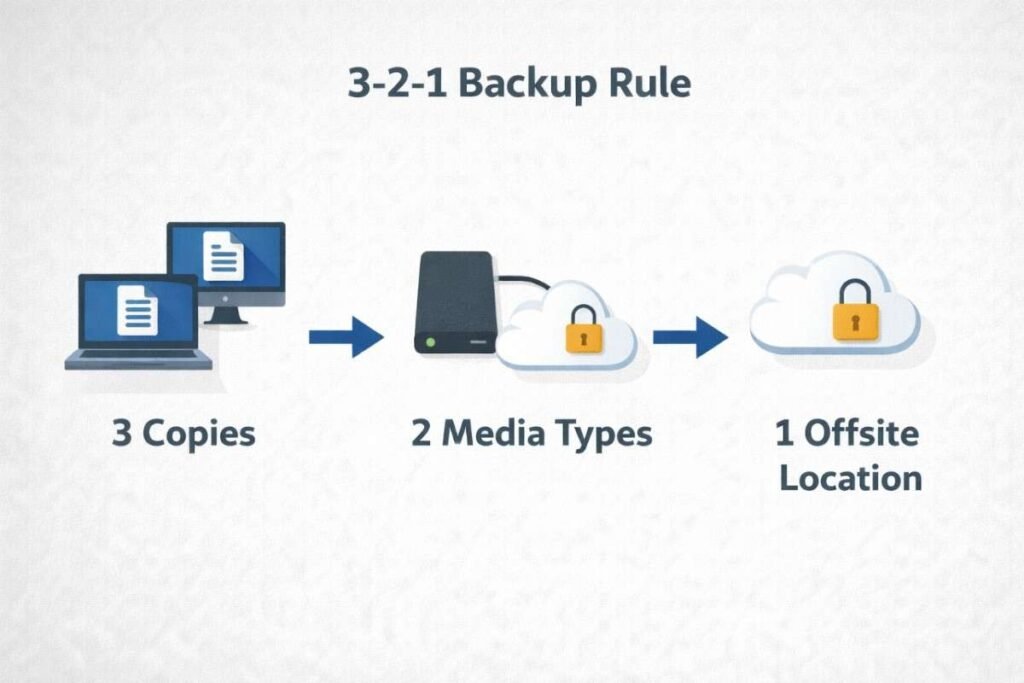
Hard lessons from disaster recovery reveal a critical mistake: storing backups on the same server as your live site. When ransomware strikes, it often encrypts everything on the server, including your backups. The 3-2-1 rule exists for this reason: three copies of your data, two different storage types, one off-site location. And here’s the crucial part—test your backups quarterly. Too many site owners discover their backups were corrupted only when they desperately needed them during an emergency.
Adhere to the 3-2-1 backup principle: maintain three data copies across two different storage media, with one copy stored remotely. Quarterly backup restoration tests to staging environments verify that your backups actually function when needed. Untested backups often fail during actual emergencies.
Execute complete backups weekly and database-specific backups daily. Retain backup archives for a minimum of 30 days, providing multiple restoration points if you discover issues that originated weeks earlier.
Track Site Activities
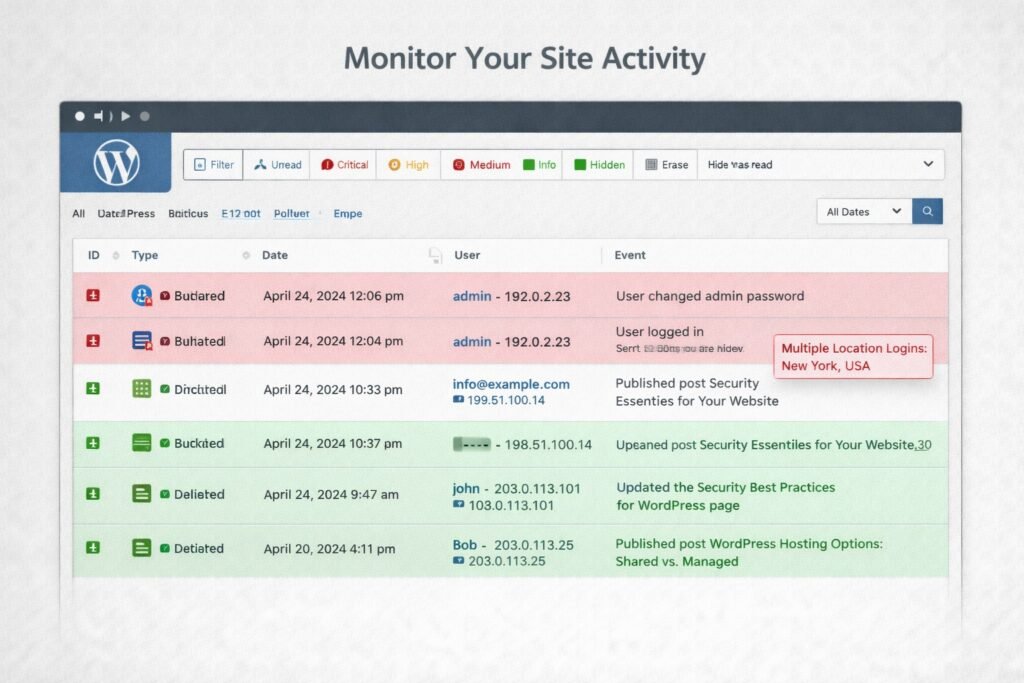
Effective protection requires visibility into site activities. Activity logging creates detailed audit trails documenting everything occurring within your WordPress environment, highlighting suspicious patterns before they escalate.
Activity log plugins record user authentication events, content modifications, plugin installations, configuration changes, and failed login attempts. Weekly log reviews help identify concerning patterns like repeated failed logins from unknown IP addresses or unexpected file alterations.
Implement uptime monitoring through external services that immediately notify you when your site becomes unavailable. These tools enable quick responses to potential attacks or server failures. While security plugins often include monitoring features, external services provide valuable redundancy.
Conduct Regular Malware Scans
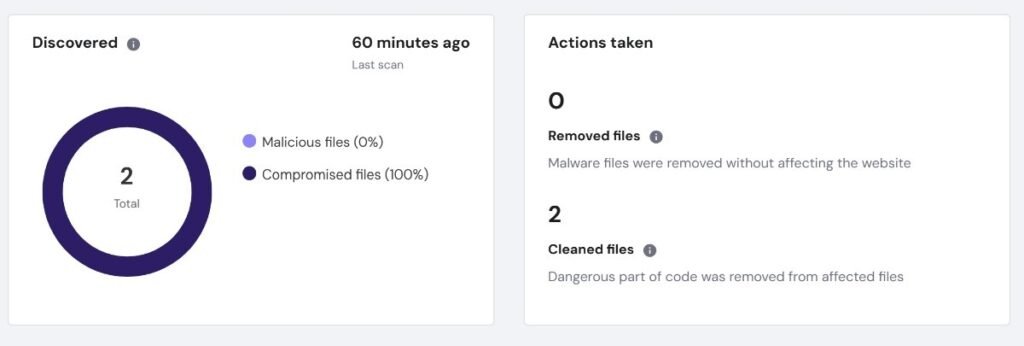
Proactive malware detection identifies infections early, before they devastate your reputation or compromise visitors. Schedule weekly automated scans through your security plugin, supplemented by periodic manual checks using independent services.
💡 EXPERT INSIGHT
Modern malware has become incredibly sophisticated. Contemporary infections often hide in plain sight, operating silently while stealing data or hijacking server resources for cryptocurrency mining operations. Don’t wait for obvious signs like defaced pages or broken functionality. Schedule scans during off-peak hours weekly, and use multiple scanning tools—what one scanner misses, another might catch. Think of it like seeking a second medical opinion for serious health concerns.
When scans detect infections, document everything before taking remediation steps. Most security plugins offer automated removal capabilities, though severe infections may warrant professional security service engagement. Rapid response minimizes damage and prevents malware propagation.
Implementing Advanced Protective Measures
Manage XML-RPC Functionality
XML-RPC enables remote WordPress connections but simultaneously introduces security vulnerabilities. Unless you actively use the mobile app or services requiring this functionality, disable it completely.
Block XML-RPC requests through .htaccess file modifications or security plugin settings. This straightforward step eliminates brute force attacks exploiting the XML-RPC protocol.
Secure Database Operations
Your WordPress database houses all valuable site content and data. Replace the default “wp_” table prefix with a unique identifier during installation, or modify it afterward using database management tools or security plugins.
Limit database access to localhost unless remote access is specifically required. Regular database optimization removes unnecessary overhead while maintaining security integrity. Many backup solutions incorporate optimization utilities.
Establish Content Security Policies
Content Security Policy headers defend against cross-site scripting attacks by controlling which resources your site loads. While CSP implementation involves technical knowledge, certain premium plugins simplify configuration considerably.
💡 EXPERT INSIGHT
Security headers function like invisible bodyguards for your website. Most small business owners have never encountered terms like X-Frame-Options or Content-Security-Policy, yet these headers prevent common attack vectors effectively. The encouraging news? Many modern hosting providers now enable these protective measures with one-click activation in your control panel. Check your hosting dashboard—you might already have access to these features without realizing it.
Add security headers including X-Frame-Options, X-Content-Type-Options, and Referrer-Policy to guard against clickjacking and similar threats. Numerous hosting providers now enable one-click security header activation through their control panels.
Developing Your Security Roadmap
Security demands ongoing attention rather than one-time effort. Establish a monthly maintenance routine encompassing software updates, user account reviews, backup verification, activity log analysis, and malware scanning.
Document your security procedures in an accessible checklist that any team member can execute. Include hosting credentials, security plugin configurations, and emergency response contacts. Store this documentation securely outside your WordPress installation.
💡 EXPERT INSIGHT
Create a “digital emergency binder” for your business operations. Include your hosting login credentials, domain registrar access, security plugin details, and step-by-step response plans for different scenarios. Store everything in a reputable password manager like 1Password or LastPass, and share access with one trusted individual. When panic strikes at 2 AM because your site is down, you’ll appreciate having everything documented and accessible.
Explore cyber insurance options for additional protection. As WordPress security threats continue evolving, financial coverage for security incidents provides valuable peace of mind for your small business.
Take Action Now
This WordPress security checklist may initially appear daunting, but you needn’t address everything simultaneously. Begin with foundational elements—robust passwords, two-factor authentication, and consistent updates. Then systematically work through remaining items over subsequent weeks.
Perfect security remains unattainable, but proper security measures transform your WordPress site into a hardened target that attackers bypass for easier prey. The effort you invest securing your WordPress installation today prevents exponentially greater headaches and financial losses tomorrow.
Your small business merits a secure digital presence. By implementing this checklist and maintaining vigilant security habits, you safeguard your business, customers, and reputation throughout 2026 and beyond. Begin these protective measures immediately, making WordPress security an integral component of your digital operations.