


Your site was working yesterday. Today, it shows a cryptic error message.
No warning. No clear explanation. Sometimes it’s a blank screen. Other times, it’s a short line of technical text that offers no guidance. In that moment, almost every WordPress site owner reacts the same way—they copy the error message and paste it into Google.
This behavior isn’t new, but what’s changed in 2026 is how frequently it happens.
WordPress still powers a massive share of the web, from personal blogs to business websites and online stores. Yet modern WordPress sites are far from simple. Today’s setups rely on dozens of plugins, page builders, CDNs, caching layers, security rules, APIs, and external services. Each layer adds capability, but it also introduces new points of failure.
💡 Pro Tip: Before you panic and start Googling, take a screenshot of the error message and note what you were doing when it appeared. This context is invaluable for troubleshooting—and it’s information you’ll need whether you’re fixing it yourself or reaching out for support.
When something breaks, most users don’t inspect server logs or analyze error traces. They panic and search for the exact error message.
That’s why searches for “most googled WordPress errors” and “common WordPress errors 2026” continue to rise.
This article has three clear goals:
- Identify the WordPress errors people search for the most in 2026
- Explain why these specific errors dominate search results
- Help you understand what these errors actually mean beneath the surface
Before fixing anything, it helps to understand why the same errors keep appearing again and again.
Table of Contents
How We Identified the “Most Googled” WordPress Errors
Google doesn’t publish a public list of the most searched WordPress error messages, but clear patterns emerge when you examine the right data sources.
This article is based on consistent signals from four reliable places:
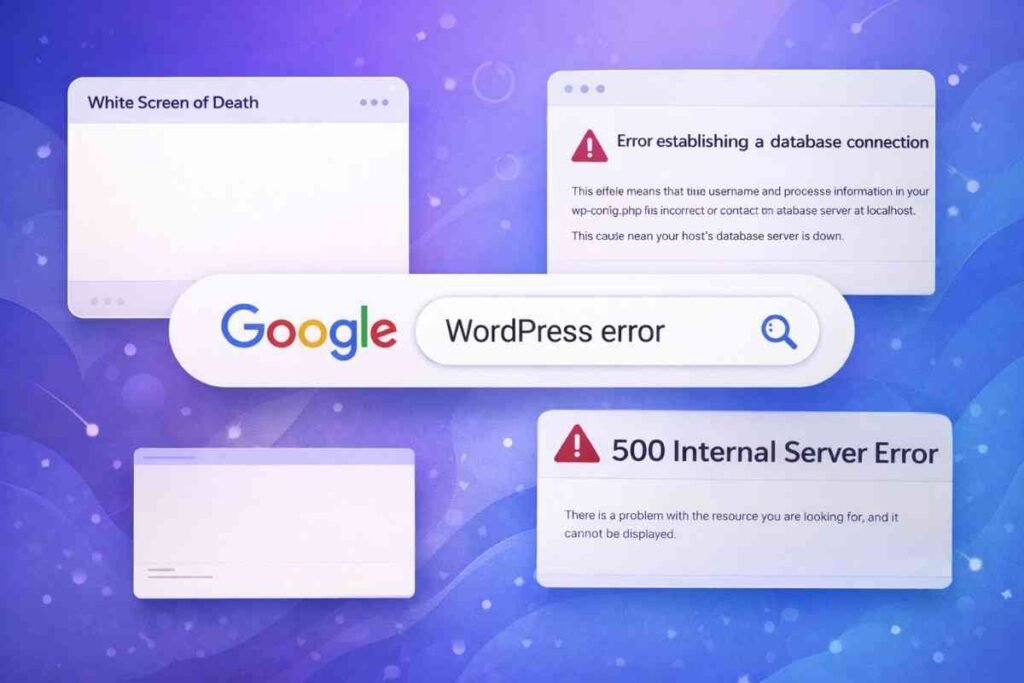
- Official WordPress documentation, which highlights recurring and well-known failure points
- WordPress.org support forums, where users repeatedly post identical error messages
- Hosting provider knowledge bases, which document the issues they encounter most often
- Exact error strings that users copy and paste directly into search engines
These aren’t rare edge cases or hypothetical problems. They’re errors that real site owners encounter, search for, and struggle to understand.
With that context in place, let’s examine the WordPress errors users search for the most in 2026.
The Most Googled WordPress Errors in 2026
“There Has Been a Critical Error on This Website”
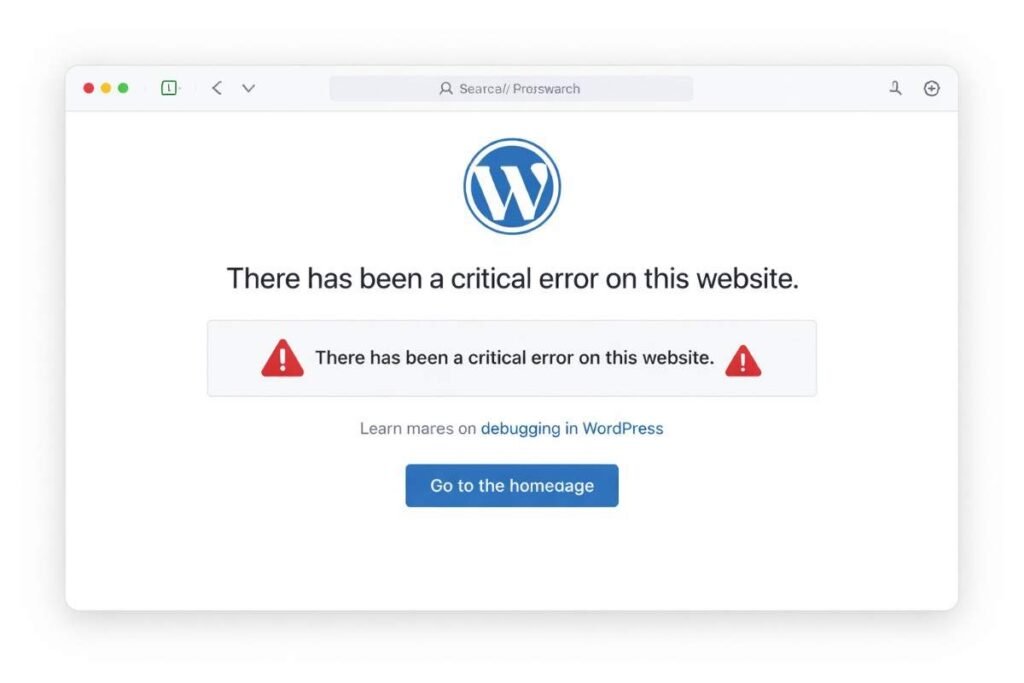
This ranks among the most searched WordPress errors in 2026, largely because it appears suddenly and can block access to both the site and the dashboard.
The message is frustratingly generic. It doesn’t explain what went wrong or how to fix it. For many users, it also prevents logging into WordPress, which amplifies the panic.
In most cases, this error signals one of three issues:
- A plugin or theme triggered a fatal PHP error
- The site is running on an incompatible PHP version
- The server ran out of available memory
This message became more visible after WordPress introduced recovery mode, which attempts to protect administrators from total lockout. While recovery mode helps, the error message itself remains maddeningly vague.
It reflects modern WordPress usage, where plugins are heavier, updates are more frequent, and compatibility issues are more common than ever.
🔧 Expert Advice: Enable WP_DEBUG in your wp-config.php file to see the actual error details. Add these lines to reveal what’s really happening:
define('WP_DEBUG', true);
define('WP_DEBUG_LOG', true);
define('WP_DEBUG_DISPLAY', false);
Then check the /wp-content/debug.log file for specific error information. This transforms a vague message into actionable intelligence.
“Error Establishing a Database Connection”
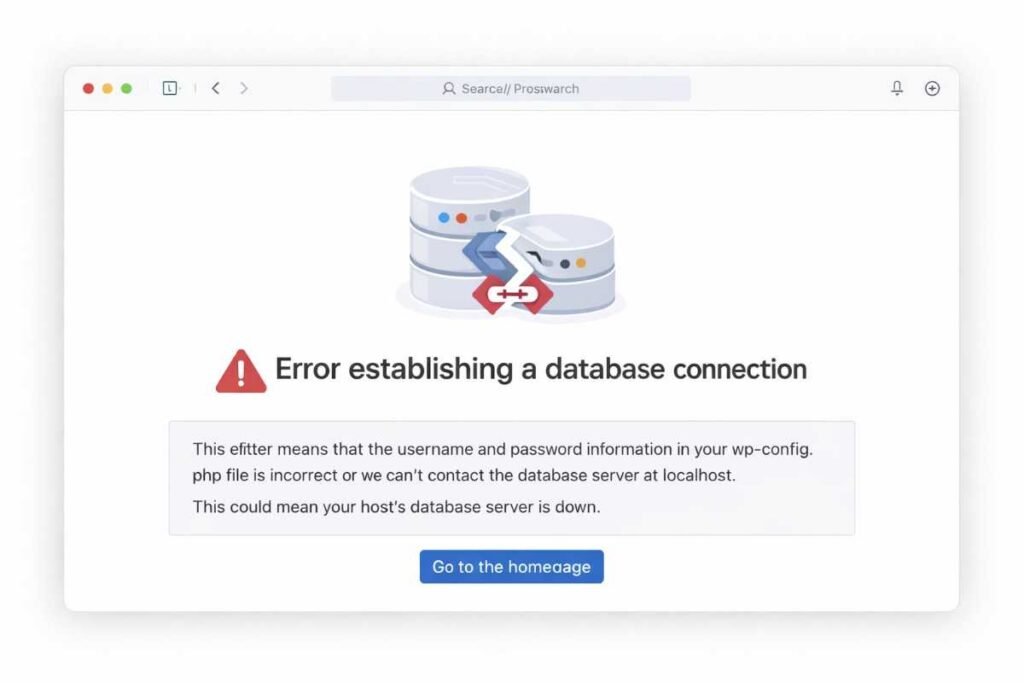
Few WordPress errors feel more severe than this one. When it appears, the entire site goes offline.
The message is clear, alarming, and easy to understand—which is precisely why it consistently ranks among the most googled WordPress errors.
Common causes include:
- Database server downtime
- Incorrect database credentials
- Hosting resource limits or server overload
This error reveals an uncomfortable reality: hosting quality matters more than many site owners realize. Even a perfectly configured WordPress site cannot function if the database server is unavailable.
💡 Pro Tip: Keep your database credentials handy in a secure password manager. When this error strikes, you’ll need to verify the DB_NAME, DB_USER, DB_PASSWORD, and DB_HOST values in your wp-config.php file. Having quick access to these credentials can save you precious minutes during an outage.
500 Internal Server Error
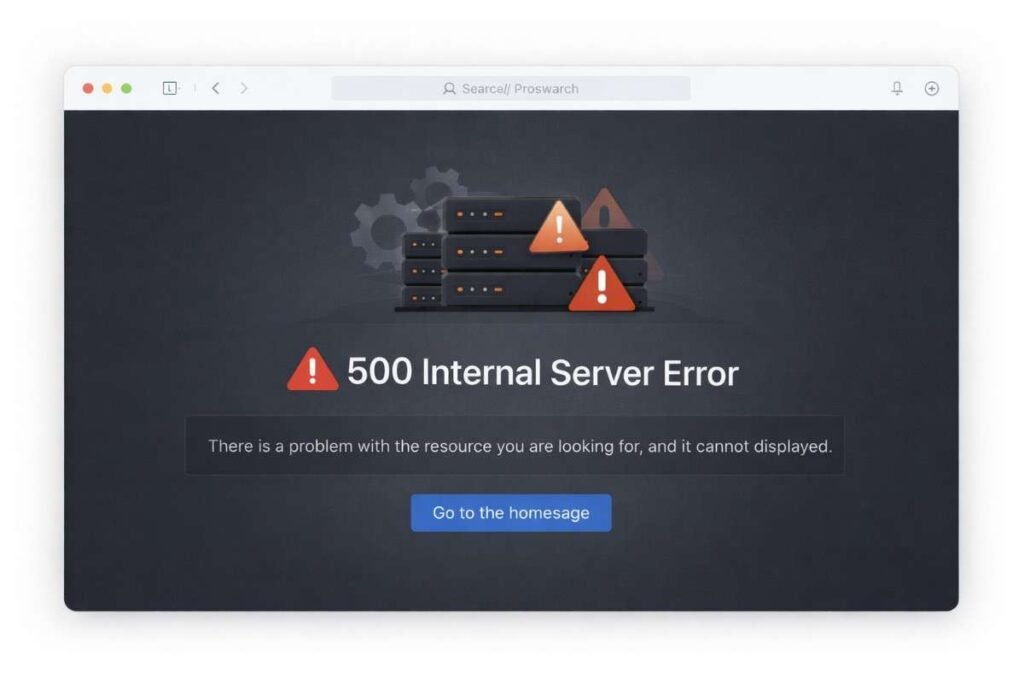
The 500 Internal Server Error remains one of the most frustrating WordPress issues because it provides almost no useful information.
Users see a vague browser message with no indication of what caused the failure, so they immediately search for answers.
Typical triggers include:
- A corrupt .htaccess file
- PHP memory limits being exceeded
- Server misconfiguration
In 2026, this error continues to highlight a critical truth: WordPress stability depends as much on the server environment as it does on themes and plugins.
🔧 Expert Advice: Your first move should be to check the .htaccess file. Access it via FTP or your hosting file manager, then temporarily rename it to .htaccess_old. Refresh your site. If it loads, the problem was a corrupt .htaccess file—you can regenerate a fresh one through Settings → Permalinks in your WordPress dashboard.
White Screen of Death (Blank Page)
The White Screen of Death—often shortened to WSOD—is exactly what it sounds like. The page loads, but nothing appears.
No error message. No warning. Just an empty screen.
Behind the scenes, this usually means:
- A fatal PHP error stopped execution
- A theme or plugin conflict crashed the site
In 2026, this issue often overlaps with the “critical error” message, depending on server configuration and WordPress version. Either way, the visual shock of a blank page sends users straight to Google.
💡 Pro Tip: When faced with a white screen, try accessing wp-admin by adding /wp-admin to your domain (example.com/wp-admin). If the dashboard loads but the front-end doesn’t, you’ve narrowed the problem to your theme. Switch to a default WordPress theme to confirm, then troubleshoot from there.
“Allowed Memory Size Exhausted”
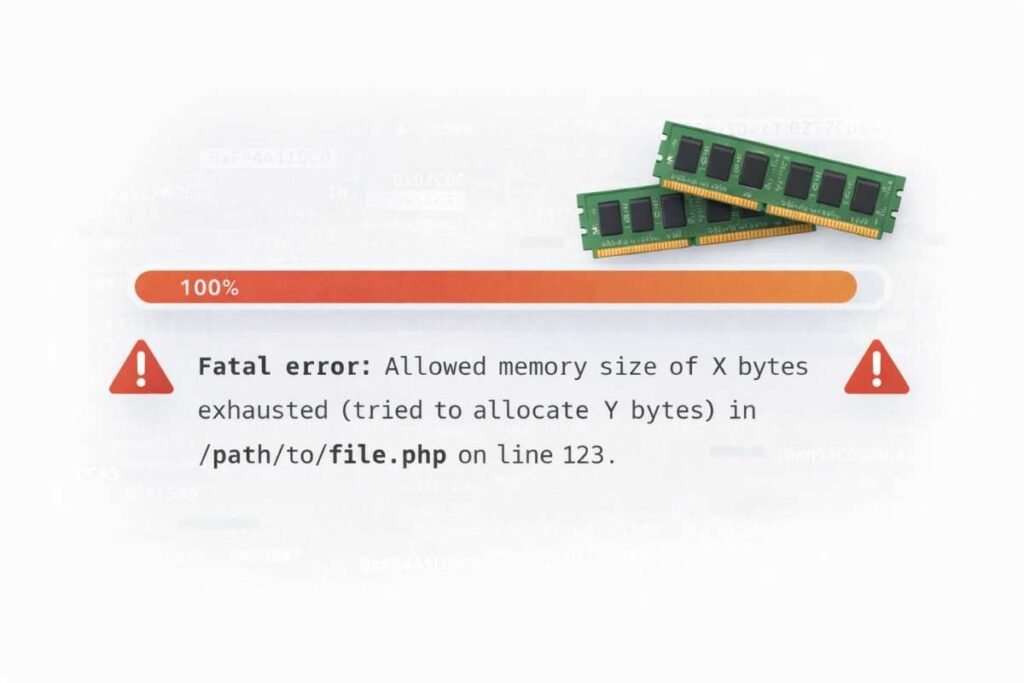
This error stands out because it includes technical details and numbers that appear intimidating at first glance.
It commonly appears during:
- Plugin or theme installation
- Large data imports
- Backup creation
- Page builder operations
The reason this error is becoming more common in 2026 is straightforward: modern WordPress sites rely on resource-heavy tools. Page builders, WooCommerce stores, and advanced plugins require significantly more memory than older setups.
When those limits are reached, WordPress halts execution and displays this error.
🔧 Expert Advice: Most shared hosting plans allocate 128MB or 256MB of PHP memory by default—often insufficient for modern WordPress sites. You can increase this limit by adding this line to your wp-config.php file:
define('WP_MEMORY_LIMIT', '512M');
If that doesn’t work, contact your host. Some servers require memory adjustments at the php.ini or server level, which only they can modify.
“Briefly Unavailable for Scheduled Maintenance”
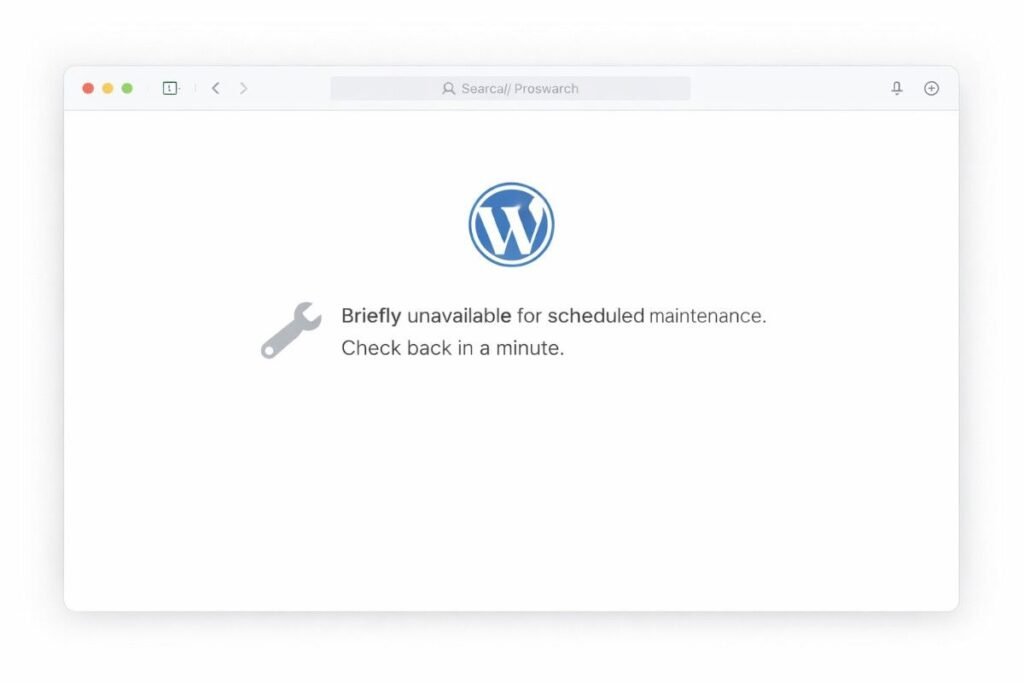
This error typically appears after a WordPress update and doesn’t resolve itself automatically.
Users refresh the page, wait several minutes, then search the message when nothing changes.
The root cause is usually simple: a stuck .maintenance file that wasn’t removed after an update.
This error highlights how fragile update processes can still be. Even in 2026, a minor interruption during an update can leave a site stuck in maintenance mode indefinitely.
💡 Pro Tip: The quick fix is simple—connect via FTP or your hosting file manager and delete the .maintenance file from your WordPress root directory. The file is hidden by default, so make sure your FTP client is set to show hidden files. Once deleted, your site will be immediately accessible again.
“Updating Failed. The Response Is Not a Valid JSON Response”
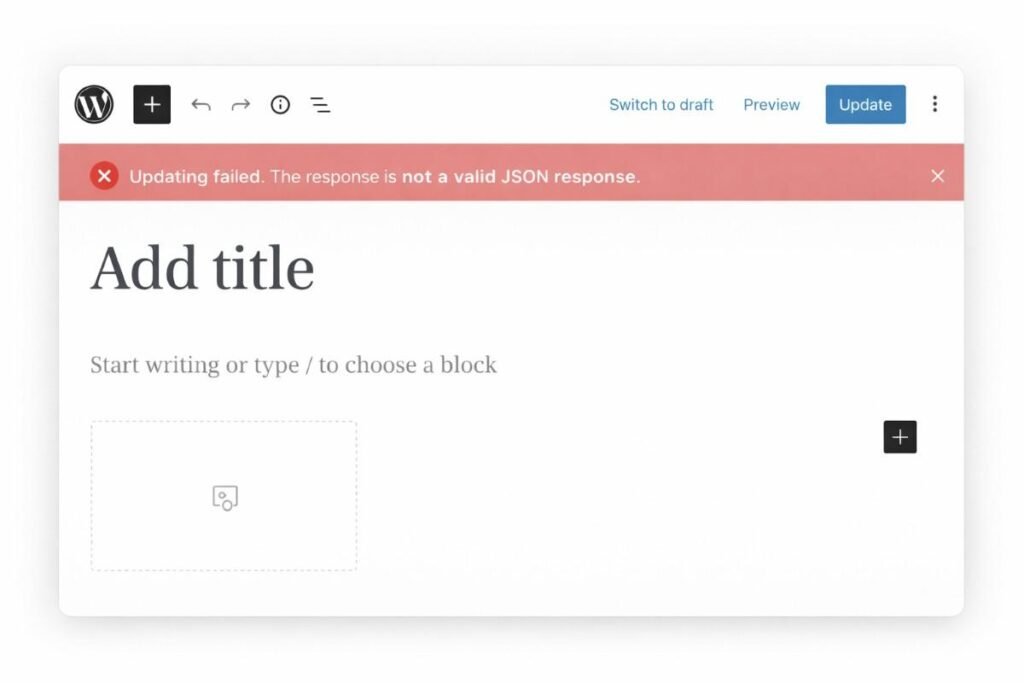
This is one of the most distinctly modern WordPress errors on the list.
It appears during content publishing or updating and is closely tied to the block editor and REST API.
Common triggers include:
- Incorrect permalink settings
- Security plugins blocking REST API requests
- CDN or firewall interference
- Mixed content or SSL configuration issues
The rise of this error demonstrates how tightly WordPress is now coupled to APIs. When server responses fail to match expected formats, the editor breaks.
🔧 Expert Advice: Start by checking your permalink settings. Navigate to Settings → Permalinks in your dashboard and simply click “Save Changes” without making any modifications. This regenerates the rewrite rules and often resolves REST API issues immediately. If that doesn’t work, temporarily disable your security plugin—many overzealous security settings block legitimate REST API requests.
ERR_TOO_MANY_REDIRECTS
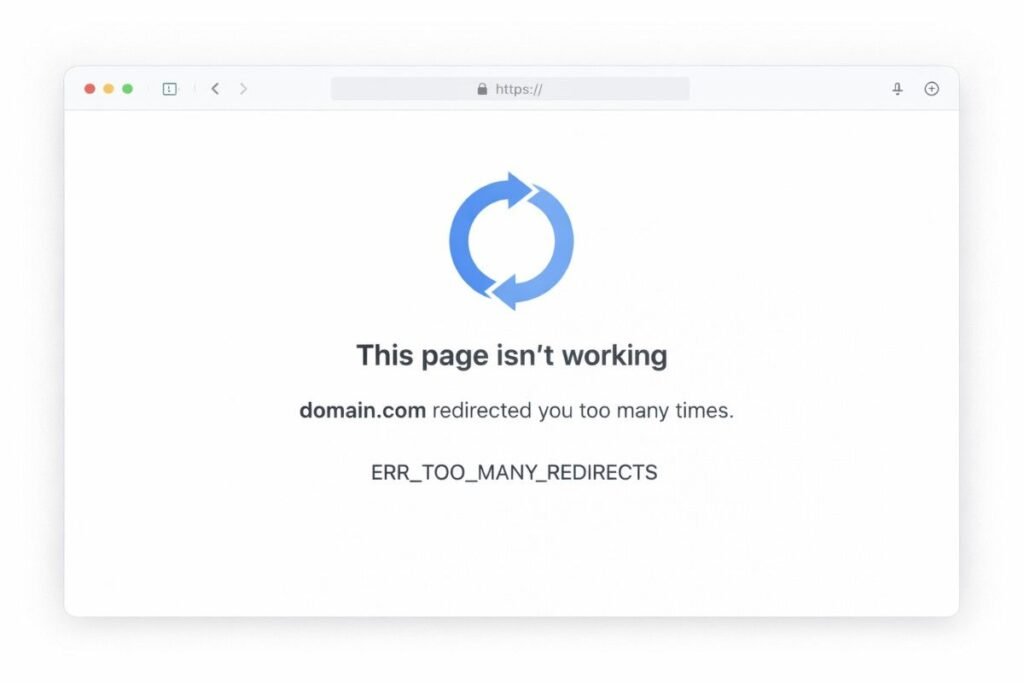
This browser-level error completely blocks access to a site, which explains why it’s searched so frequently.
It often appears after:
- SSL certificate changes
- Domain or URL changes
- Caching or CDN misconfigurations
Typical causes include:
- HTTP and HTTPS mismatches
- Conflicting redirect rules
- Cached redirects that no longer apply
In 2026, this error illustrates how multiple layers of redirection and caching can conflict when not carefully managed.
💡 Pro Tip: Clear your browser cache and cookies first—sometimes the redirect loop exists only in your local cache. If the error persists, check your WordPress Address and Site Address in Settings → General. Both should use the same protocol (both http:// or both https://). Mismatched URLs are the most common cause of redirect loops.
What These Errors Reveal About WordPress in 2026
These WordPress errors aren’t random.
When you step back, clear patterns emerge:
- More plugins create longer dependency chains
- Hosting quality has a direct impact on site stability
- REST API and block editor–related errors are increasing
The issue isn’t that WordPress is broken. The reality is that modern websites are complex systems, and each added feature introduces another potential failure point. Errors are simply the visible symptoms of that complexity.
🔧 Expert Advice: Adopt a “less is more” philosophy with plugins. Before installing any new plugin, ask yourself: Is this functionality absolutely necessary? Can my theme handle this? Could I achieve this with a code snippet instead? Every additional plugin increases your site’s attack surface, slows performance, and raises the likelihood of conflicts. Quality always trumps quantity.

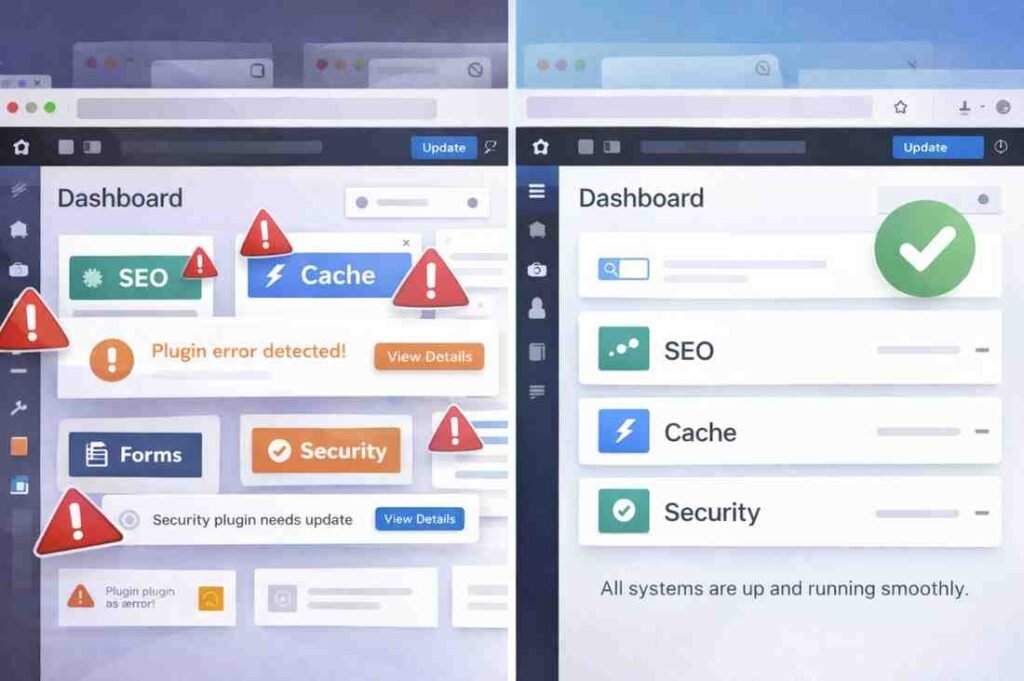
Why Googling Errors Is a Symptom—Not the Real Solution
Searching for error messages is a reactive response. It helps calm immediate panic but rarely addresses the root cause.
Long-term stability comes from proactive practices:
- Choosing reliable hosting
- Limiting unnecessary plugins
- Testing updates in staging environments
- Monitoring logs and performance
With these systems in place, errors still happen—but they occur less often, and recovery is faster and less stressful.
Conclusion: WordPress Errors Aren’t Going Away—But Panic Is Optional
The most searched WordPress errors in 2026 tell a consistent story.
They reflect how WordPress has evolved, how websites have become more complex, and how small issues can cascade into visible failures.
The good news is simple: most WordPress errors are fixable, and many are preventable.
Understanding what these errors actually mean removes fear from the equation.
Which WordPress error have you searched for most recently?
Share your experience in the comments, and bookmark this guide so the next time something breaks, you respond with clarity instead of panic.
Read Also: How to Prevent Unauthorized Access to Media Files in WordPress (2026)