
You upload a PDF for your members. You add a private image meant only for clients. You host a paid video behind a login page.
Everything feels secure at first glance.
The page is restricted. The menu link is hidden. Content appears only after login. As a WordPress site owner, you naturally assume your media files are protected the same way as your pages.
That assumption is where the risk begins.
Most WordPress media files are publicly accessible through direct URLs by default. Anyone with the file link can open it, download it, or share it—even if the page displaying that file is private.
This matters more than many site owners realize.
Private downloads leak. Client documents get shared unintentionally. Paid content circulates freely. Sensitive images or videos get indexed or scraped without your knowledge.
The uncomfortable but essential question is this: How do you prevent unauthorized users from accessing your WordPress media files?
Before you can secure your media, you need to understand how WordPress actually handles file access. This guide will show you exactly how to prevent unauthorized access to media files in WordPress using proven methods that work.
Table of Contents
How WordPress Media Files Are Accessed by Default
WordPress stores uploaded files in a public directory called /wp-content/uploads/. This folder exists for performance and accessibility. Images, PDFs, videos, and other media assets need to load quickly, so WordPress doesn’t apply login or permission checks to this directory by default.
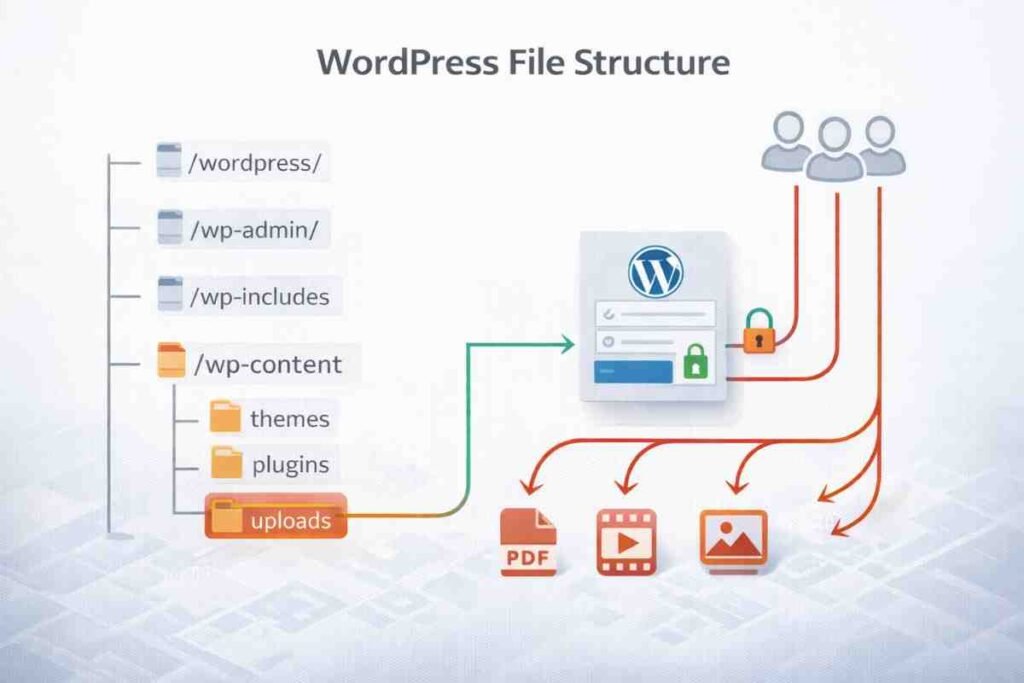
Here’s the core issue: WordPress doesn’t verify user permissions when someone accesses a media file directly.
If someone knows or discovers the file URL, WordPress serves it without checking whether the visitor is logged in or authorized.
Consider this simple example. You upload a PDF intended only for members and embed it on a protected page. A logged-in user copies the file URL. That same URL opens instantly in a private or incognito browser—no login, no restriction.
This behavior isn’t a flaw or misconfiguration. It’s how WordPress is designed to work.
The real-world risks are often underestimated: content scraping by bots or competitors, bandwidth abuse through hotlinking, data leaks involving client or internal files, and paid downloads spreading without control.
Understanding this default behavior is the foundation of effective WordPress media file security.
Expert Insight: Security professionals recommend treating your uploads folder as if it were publicly listed on your homepage. If you wouldn’t want a file openly displayed there, it needs protection. This mental model helps prioritize which files require immediate attention.
Common Situations Where Unauthorized Media Access Becomes a Problem
Not every website feels this issue immediately, which is why it often goes unnoticed.
However, for certain types of sites, unauthorized media access quickly becomes a serious problem.
Membership sites depend on gated PDFs, videos, and resources. When those files are publicly accessible, the entire paywall weakens. Online courses often host video lessons or downloadable worksheets—a single shared link can bypass months of careful content creation.
Client portals store contracts, invoices, and project files. Even accidental sharing damages trust and credibility. Paid downloads and digital products lose value the moment direct URLs begin circulating in forums or group chats.
Even internal drafts, design assets, or images meant only for editors can leak if media access isn’t properly controlled.
This is the turning point—you move from “this is how WordPress works” to “this is where it hurts.”

Expert Advice: Before implementing any security measures, conduct a media audit. Search your uploads folder for files containing terms like “private,” “client,” “invoice,” or “confidential.” This quick scan often reveals surprising security gaps that need immediate attention.
Why Hiding Media URLs Is Not a Security Strategy
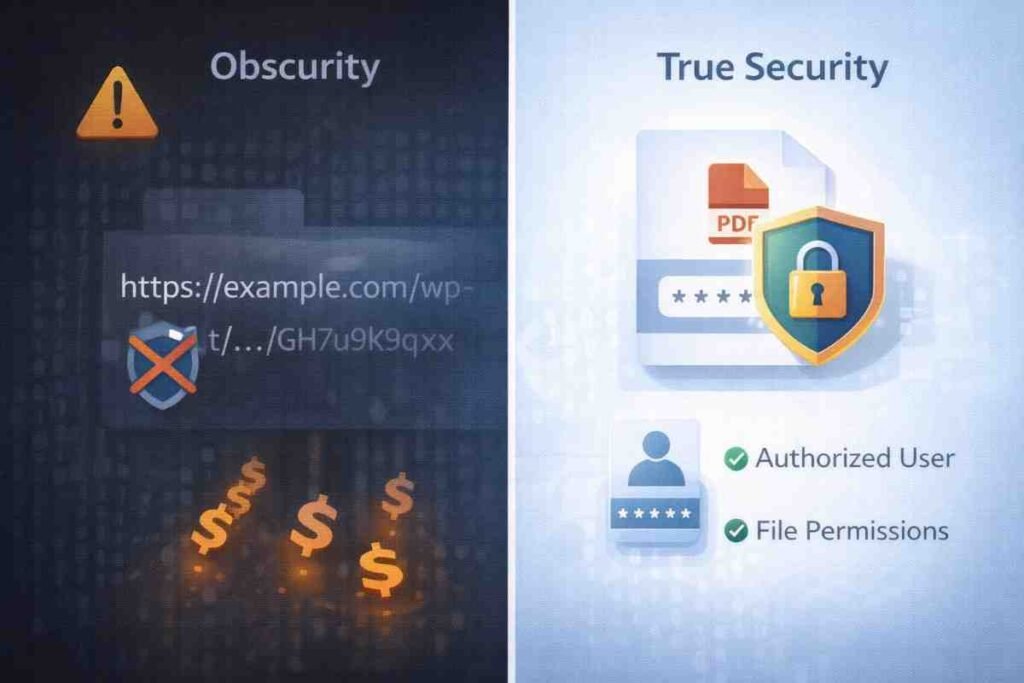
A common reaction is to hide media URLs and hope for the best: long filenames, random numbers, deep folder paths.
Unfortunately, obscurity isn’t protection.
Search engines can still index media files if they’re linked anywhere on your site. URLs can be shared, guessed, logged, or exposed through browser history, analytics tools, or referrer data. Countless real-world examples exist of paid PDFs circulating publicly simply because one person shared a direct link.
Once a file URL escapes, there’s no reliable way to pull it back without enforcing real access control.
Protecting WordPress media files means controlling who can access a file—not relying on secrecy.
Expert Warning: Web security experts have documented cases where “hidden” URLs were discovered through Google dorking (advanced search operators), leaked analytics data, and even browser autocomplete suggestions. Obscurity fails because it assumes URLs will remain secret—an assumption that rarely holds in practice.
Method 1: Restrict Media Access Using WordPress Plugins
For most site owners, plugins are the most practical starting point.
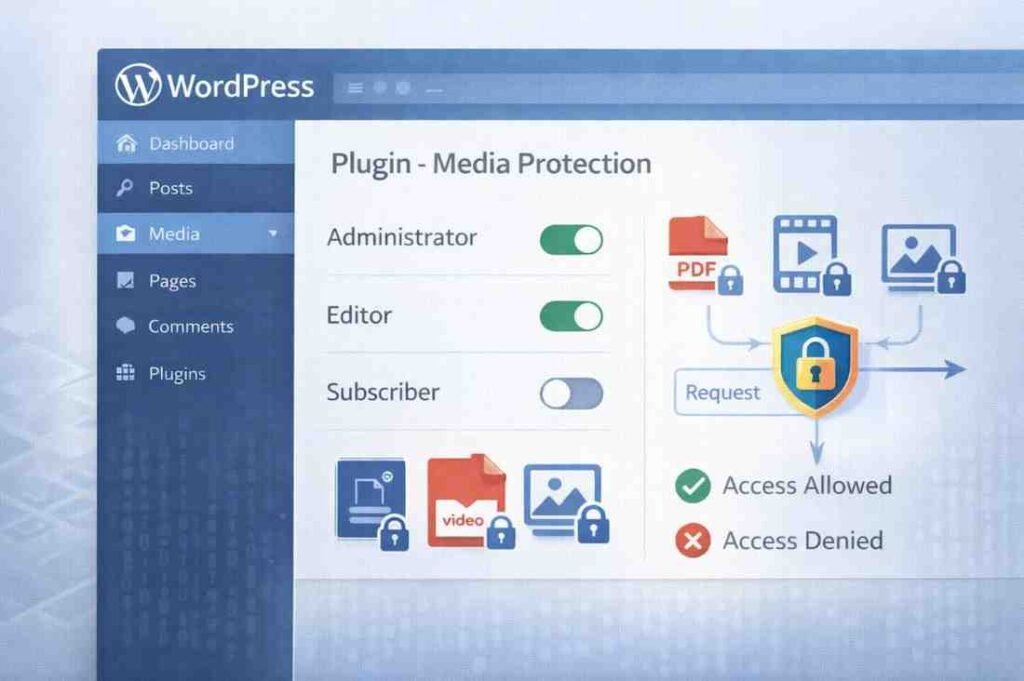
Media access control plugins and membership plugins work by intercepting file requests and checking user permissions before granting access. The concept is straightforward: instead of letting the server serve files automatically, the plugin verifies whether the visitor is logged in, has the correct role, or meets specific conditions.
The benefits are clear—no coding required, role-based permissions, login-based or time-limited access, and centralized management inside WordPress.
Some plugins focus exclusively on media protection, while others include file restrictions as part of broader membership or security features.
When choosing a plugin, best practices matter more than brand names. Look for solutions that actively block direct URL access, integrate cleanly with WordPress user roles, avoid unnecessary performance overhead, and are actively maintained and updated.
Used correctly, plugins can significantly reduce unauthorized media access without adding technical complexity.
Expert Recommendation: When evaluating media protection plugins, test them with incognito mode before going live. Upload a test file, restrict it through the plugin, then try accessing the direct URL while logged out. This simple test reveals whether the plugin actually blocks access or merely hides links—a critical distinction many site owners miss.
Method 2: Protect Media Files with Server-Level Rules (.htaccess or Nginx)
For site owners who need stronger control, server-level protection offers a powerful option.
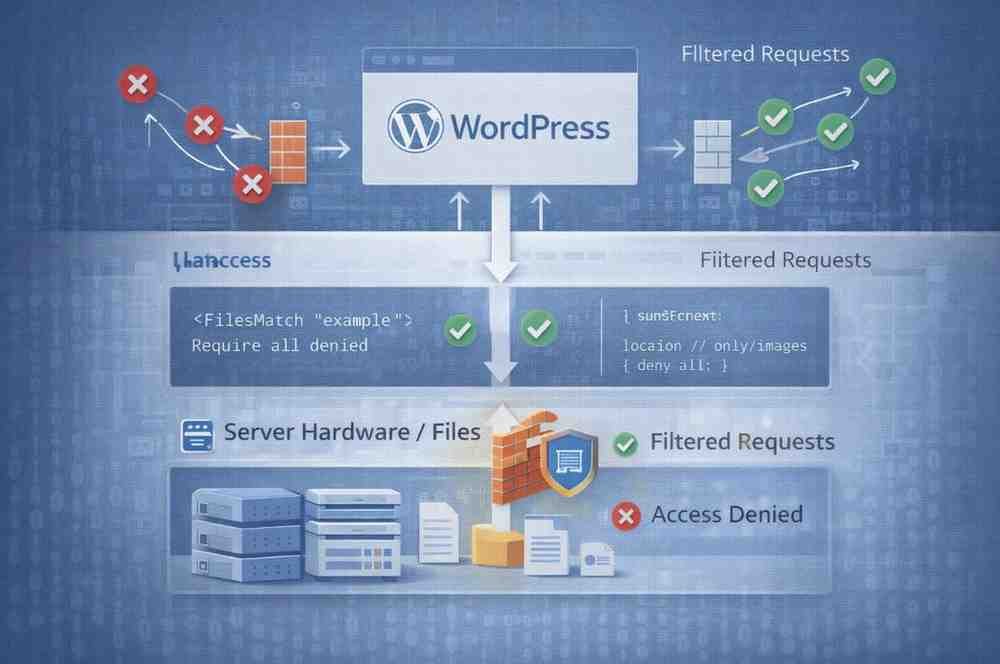
This approach operates below WordPress itself. Instead of relying on plugins, you configure your web server to restrict direct access to the uploads folder. Requests are either blocked entirely or routed through WordPress for permission checks.
In practical terms, this can block direct file access, allow files only when served through WordPress, and prevent hotlinking and unauthorized downloads.
The advantages are substantial—server-level rules provide strong security and eliminate plugin dependency. However, there are trade-offs. This method requires technical knowledge and depends on your hosting environment. Apache, Nginx, and managed hosting platforms handle configurations differently.
For many sites, server-level protection works best as a step beyond plugins, not a complete replacement.
Expert Tip: Before implementing server-level rules, always back up your .htaccess file (or Nginx config). A single syntax error can break your entire site. Start with restrictive rules on a staging environment, test thoroughly, then deploy to production. WordPress developers often recommend using HTTP authentication as an additional layer for truly sensitive directories.
Method 3: Move Sensitive Files Outside the Public Uploads Folder
The /uploads/ directory is public by design, and that design choice is what makes WordPress fast and flexible.
For highly sensitive files, the safest option is to keep them out of public directories altogether.
This method involves storing files outside /wp-content/uploads/, placing them in a non-public server location, and serving files through controlled scripts that verify permissions.
This approach is ideal for legal documents, financial records, client data, and confidential internal resources. Because the files are never directly accessible via a URL, unauthorized access becomes far more difficult.
While this method requires development work, it offers one of the strongest forms of WordPress upload security available.
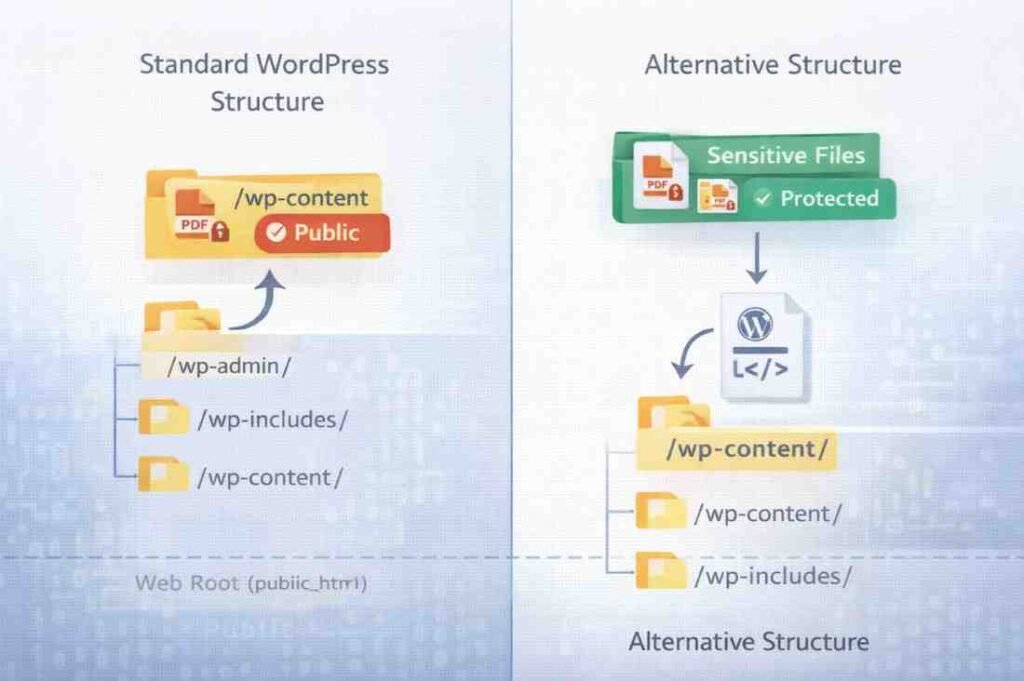
Expert Strategy: Security consultants recommend creating a two-tier system: keep standard marketing images in the public uploads folder for performance, but store sensitive files (contracts, financial documents, member-only resources) outside the web root entirely. This approach balances security with site speed, ensuring you don’t sacrifice performance for files that don’t need heavy protection.
Method 4: Control Media Access Using User Roles and Permissions
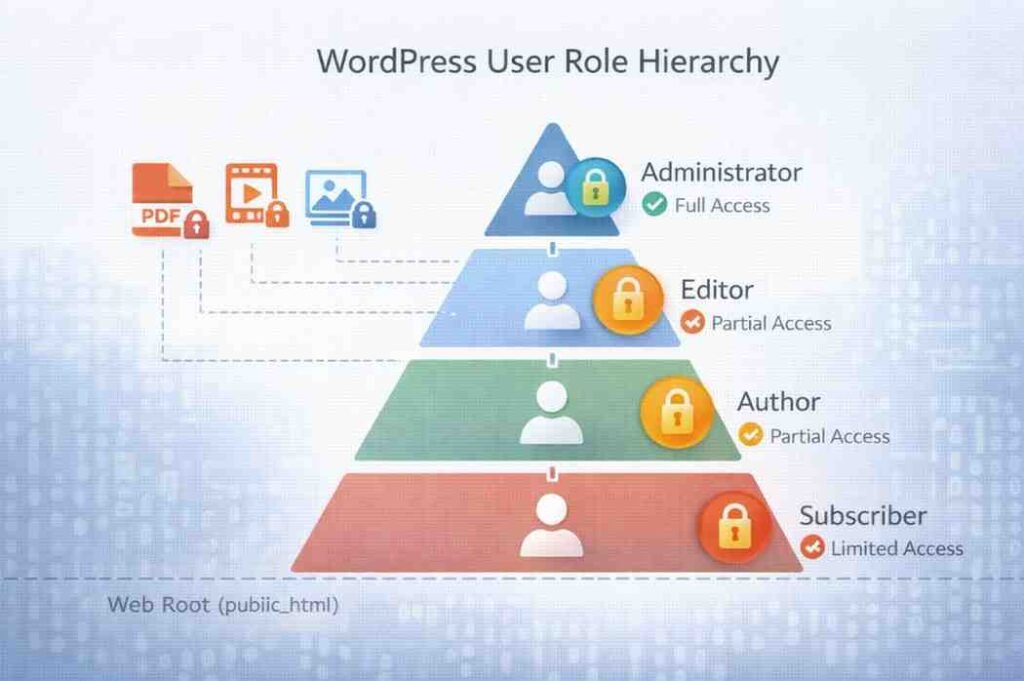
WordPress includes a built-in role system for good reason. Administrators, editors, authors, subscribers, and custom roles allow you to control who can view and manage content.
Role-based access helps by separating editors from subscribers, restricting downloads to logged-in users, and limiting access to internal resources.
However, there’s an important limitation: user roles alone don’t protect direct media URLs.
If a file exists in the uploads folder and remains publicly accessible, roles are effective only when combined with plugins or server-level restrictions. Used together, roles become a powerful part of a layered security approach.
Expert Practice: WordPress security specialists recommend creating custom user roles for different access levels rather than relying solely on default roles. For example, a “Premium Member” role could access certain media files while “Basic Members” cannot. Combined with conditional logic in your security plugin, this granular control prevents both over-sharing and user frustration from overly restrictive settings.
Preventing Search Engines and Bots from Indexing Media Files
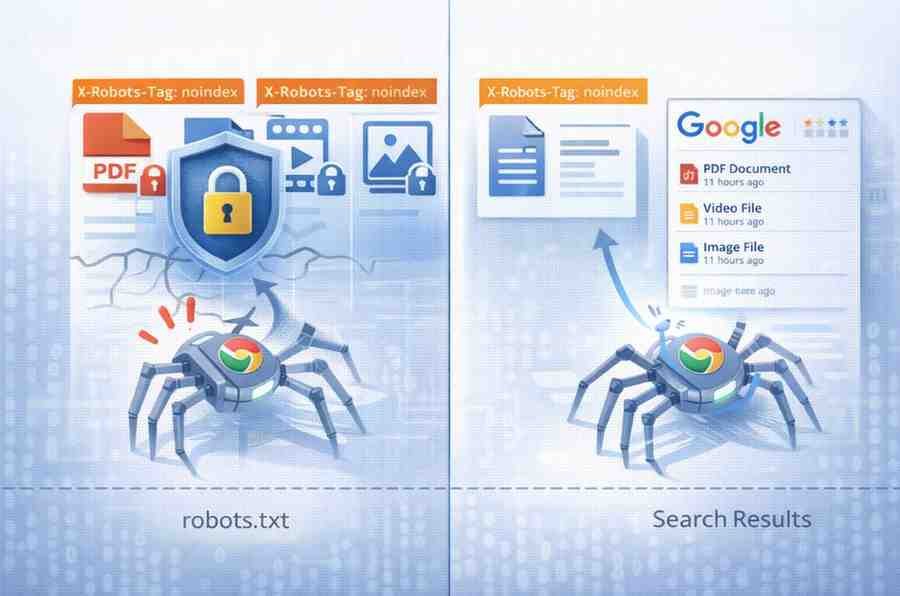
Media files often become visible because they’re indexed. Search engines crawl images, PDFs, and videos just like pages. If those files are public, they can appear in search results.
Many site owners rely on robots.txt, but it has limits—it provides guidance to bots, not enforcement.
Using proper noindex directives and restricting access at the server or plugin level is far more effective. The benefits extend beyond security: you reduce unnecessary exposure, limit scraping and bandwidth waste, and keep search engines focused on content that actually matters.
This overlap between SEO and security signals technical competence and professionalism.
Expert Note: SEO professionals point out that unprotected media files can cause duplicate content issues and waste crawl budget. By using X-Robots-Tag headers at the server level (rather than just robots.txt), you can definitively prevent indexing while maintaining security. This approach is more reliable than meta tags and doesn’t depend on bot compliance.
How to Choose the Right Media Protection Strategy for Your Site
There’s no single solution that fits every website. The right approach depends on your use case.
A simple blog may need only light protection for occasional downloads. A membership site benefits from plugin-based restrictions combined with role checks. An ecommerce or course platform often requires layered security using both plugins and server rules. Client portals and data-sensitive platforms should consider non-public storage and controlled file delivery.
The goal is balance: security shouldn’t damage usability, performance shouldn’t suffer unnecessarily, and control should reflect the value of the content.
Layered protection is almost always more effective than relying on one method alone.
Securing WordPress Media Is About Control, Not Complexity
WordPress media files are public by default—a reality that surprises many site owners. Unauthorized access isn’t a rare edge case. It’s a structural risk.
The good news is that multiple protection options exist, ranging from simple plugins to advanced server configurations.
The most important change is a mindset shift: if a file matters, it should be protected.
Take time to audit your media library. Identify which files are private, paid, or sensitive. Apply at least one protection method today.
Because the final question is worth asking: How many files on your site would you be uncomfortable seeing shared publicly?
Read Also: Drupal vs WordPress: Which CMS Is Better for Your Website in 2026?