



You publish a page on your WordPress site.
You optimize it carefully.
You even build a few solid links to support it.
Then a few weeks later, rankings start to feel unstable.
One day, your page appears on Google as expected. The next day, a different version of the same page shows up instead. Sometimes traffic is split between two similar URLs. Sometimes neither version performs well.
Behind the scenes, Google may be seeing multiple URLs pointing to the same content. When that happens, search engines are forced to decide which version should rank—and that choice is often made without your input.
This is exactly why understanding how to add canonical tag in WordPress is so important.
If you are looking for a clear, practical guide on how to add canonical tag in WordPress to fix duplicate content issues and stabilize rankings, this article walks you through it step by step. No fluff. No unnecessary theory. Just proven methods using SEO plugins or manual code, depending on what your site actually needs.
By the end of this guide, you will know exactly how canonical tags work, when you should use them, and how to add them correctly in WordPress without harming your SEO.
What Is a Canonical Tag? (Explained Without Jargon)
A canonical tag is a simple line of HTML that tells search engines:
“This is the main version of this page. Treat other versions as duplicates.”
Here is what it looks like:
<link rel="canonical" href="https://example.com/original-page/" />
When Google discovers multiple URLs with identical—or very similar—content, it uses the canonical URL to consolidate ranking signals such as links, authority, and relevance into one preferred version.
Why Search Engines Care About Canonical URLs
Search engines rely on clarity. If they see several URLs like these:
/page/page?utm_source=twitter/page//category/page
they may treat them as separate pages unless you clearly tell them otherwise.
Canonical tags solve this by signaling that these variations represent the same content and should be evaluated as one unified page. That prevents ranking signals from being split—and helps Google understand exactly which URL you want to be the “main” one.
Real-World Examples in WordPress
Canonical problems show up more often than most site owners realize, especially on growing WordPress sites. Common examples include:
- Ecommerce product pages with filters or sorting parameters
- Tracking URLs from ads, email campaigns, or social media
- Paginated blog archives
- Category and tag pages that display the same posts
Instead of forcing users into a redirect, canonical tags guide search engines quietly while keeping the browsing experience smooth.
That is why canonical tags are often the better choice when multiple URL formats still need to exist.
When Do You Actually Need a Canonical Tag in WordPress?
Not every WordPress page needs a manually defined canonical. In fact, adding canonicals blindly can create new SEO issues.
You generally need canonical tags when WordPress generates multiple valid URLs for the same content—and search engines start treating those URLs as separate pages.
Common WordPress Scenarios That Cause Duplicate Content
The most frequent causes include:
- Category and tag archives showing identical posts
- HTTP vs HTTPS or www vs non-www versions
- Pagination and filtering on blogs or ecommerce stores
- UTM and campaign tracking parameters
- WooCommerce sorting, variations, or layered navigation
A Quick Checklist
You likely need canonical tags if:
- Google Search Console shows “Duplicate without user-selected canonical”
- Multiple URL versions rank for the same keyword
- Traffic is split across similar pages
- Your site uses filters, parameters, or faceted navigation
If none of these apply, WordPress’s default canonical behavior may already be enough.
How WordPress Handles Canonical Tags by Default
WordPress automatically outputs canonical tags on most standard pages. For simple blogs and small sites, that usually works fine.
However, once your site becomes more complex, default behavior can start to show cracks.
Where WordPress Defaults Fall Short
Canonical issues often appear with:
- Custom post types that do not resolve cleanly
- WooCommerce pages that generate multiple URL variations
- Archive pages and pagination that send mixed signals
- Multilingual or parameter-heavy setups that require precise control
If SEO matters to your business, relying only on WordPress core is rarely the best strategy. That is why most serious sites use a plugin—or controlled manual overrides where necessary.
Method 1: Add Canonical Tag Using an SEO Plugin (Recommended)
For most WordPress users, an SEO plugin is the safest and most maintainable option.
Using Rank Math SEO
Rank Math automatically adds self-referencing canonical tags to posts, pages, categories, and products.
You typically need to change it only when:
- A page has multiple valid URL versions, or
- You want to consolidate similar or overlapping pages
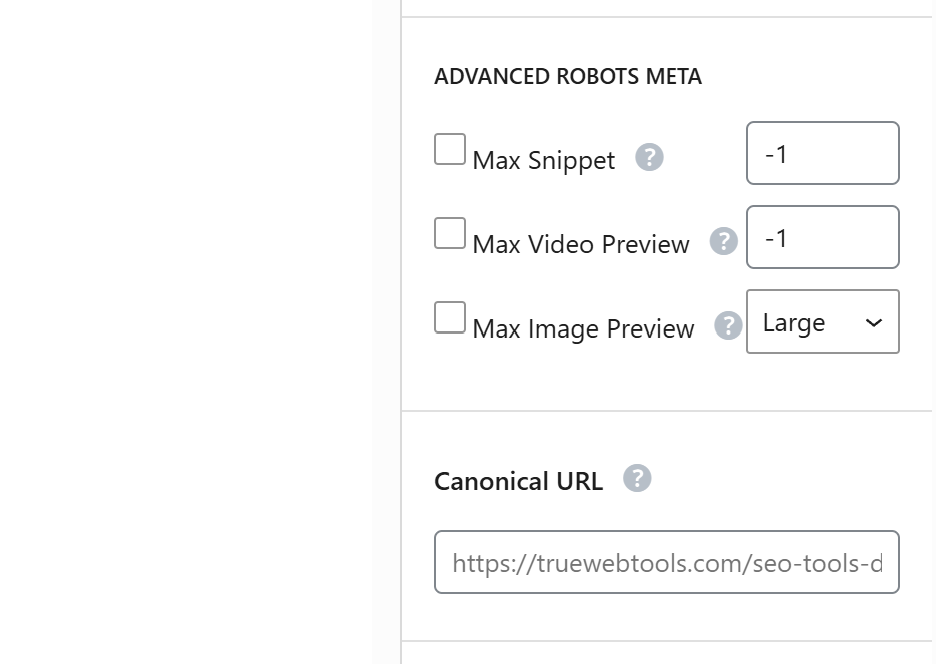
To set a custom canonical:
- Edit the post or page
- Open Rank Math SEO settings
- Go to the Advanced tab
- Enter the preferred canonical URL
Rank Math then handles output, validation, and updates automatically.

Using Yoast SEO
Yoast works similarly.
To set a canonical:
- Edit the page
- Open Yoast SEO settings
- Go to Advanced
- Enter the canonical URL
If you leave it blank, Yoast generates the default canonical automatically.
All in One SEO (Brief Mention)
All in One SEO also supports canonical URLs in advanced settings. The approach is the same: rely on defaults unless you need tighter control.
Best Practices When Using Plugins
- Always use absolute URLs
- Avoid setting custom canonicals on every page unnecessarily
- Confirm canonical URLs are indexable
- Keep canonicals aligned with sitemap URLs
Common Plugin Mistakes
- Canonicalizing to redirected URLs
- Pointing canonicals to noindex pages
- Using HTTP canonicals on an HTTPS site
Method 2: Manually Add Canonical Tag in WordPress (Advanced)
Manual canonicals are best for advanced users who need finer control, especially when:
- You are building custom themes
- Plugins conflict or output duplicate tags
- You need custom logic beyond plugin settings
Adding Canonical via header.php
You can insert the canonical tag directly inside the <head> section:
<link rel="canonical" href="<?php echo esc_url( get_permalink() ); ?>" />
This works—but it is risky. Theme updates can overwrite changes unless you use a child theme.
Adding Canonical via functions.php
A safer option is hooking into wp_head:
add_action('wp_head', function() {
  if (is_singular()) {
    echo '<link rel="canonical" href="' . esc_url(get_permalink()) . '" />';
  }
});
Important Warnings
- Never output more than one canonical tag per page
- Always verify output in page source
- Avoid hardcoding URLs unless absolutely necessary
For most websites, plugin-based canonicals remain safer and easier to maintain.
How to Check If Canonical Tags Are Working Correctly
View Page Source
Right-click → View Source → search for rel="canonical".
Make sure:
- Only one canonical tag exists
- The canonical URL is correct and indexable
Browser Developer Tools
Use Inspect → Elements → <head> to confirm the canonical tag is being output correctly.
Google Search Console
Use the URL Inspection Tool to compare:
- User-declared canonical
- Google-selected canonical
If Google ignores your canonical, it usually means:
- Signals conflict (internal links, redirects, sitemap URLs)
- The canonical target is weak
- The canonical points to a blocked or non-indexable URL
Common Canonical Tag Mistakes That Kill Rankings
Canonical errors can stay hidden until traffic drops.
Canonicalizing to Non-Indexable Pages
Avoid canonical targets that are:
- Noindex
- Redirecting
- 404 or broken
Incorrect Cross-Domain Canonicals
Only use cross-domain canonicals for intentional syndication.
Canonicals on Paginated Pages
Pointing all paginated pages to page one can remove deeper pages from search visibility.
Canonical Loops
Page A canonical → Page B
Page B canonical → Page A
That creates confusion and wastes crawl budget.
What This Looks Like in Real Life
- Lost rankings
- Keyword cannibalization
- Pages disappearing from index
- Sudden traffic drops
Canonical Tags vs Redirects: Which Should You Use?
| Situation | Canonical | Redirect |
|---|---|---|
| Same content, multiple URLs | Yes | No |
| Page permanently removed | No | Yes |
| Tracking parameters | Yes | No |
| Old URL fully replaced | No | Yes |
Simple Rule of Thumb
Use a 301 redirect when a URL should stop existing.
Use a canonical tag when multiple versions still exist, but one should be treated as the primary.
Canonicals keep options open. Redirects close the door.
Best Practices for Canonical Tags in WordPress (2026-Ready)
- Use absolute URLs every time
- Keep self-referencing canonicals on clean pages
- One canonical per page, no exceptions
- Align canonicals with your sitemap URLs
- Point internal links to canonical versions
- Avoid manual overrides unless you truly need them
Consistency beats complexity.
Conclusion: Clean Canonicals, Stronger Rankings
Canonical tags are not flashy.
They will not spike traffic overnight.
But they protect your site from a silent SEO issue that ruins performance over time: duplicate URLs competing against each other.
If you want stable rankings, cleaner indexing, and stronger authority signals, learning how to add canonical tag in WordPress correctly is essential.
Start with the basics:
- Audit your most important pages
- Use an SEO plugin
- Fix only genuine duplication issues
And then ask yourself:
Are your pages ranking—or competing with themselves?
If you are not sure, your canonicals probably deserve a closer look.
Read Also: SEO Tools Don’t Rank Websites. Decisions Do